

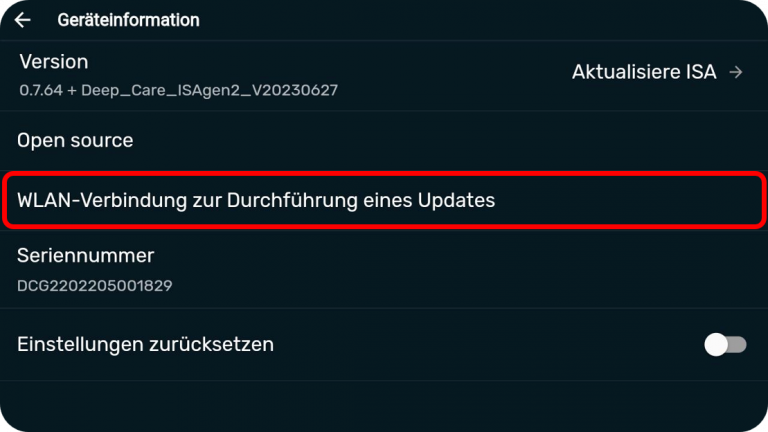
Open the menu (top right of the home screen) and go to "Settings" > "Device information" > "Wi-Fi connection to perform an update".
If "WLAN connection for performing an update" is not visible on your device, tap the serial number 5 times to activate the WLAN option.
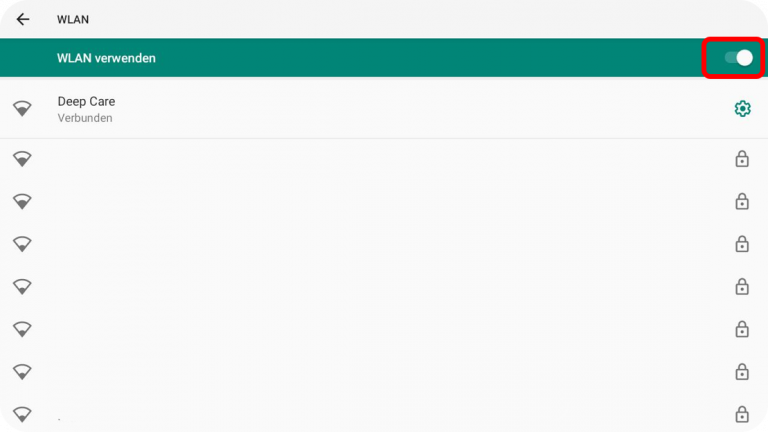
Activate the WLAN (top right)select a network from the list and enter your WLAN password.
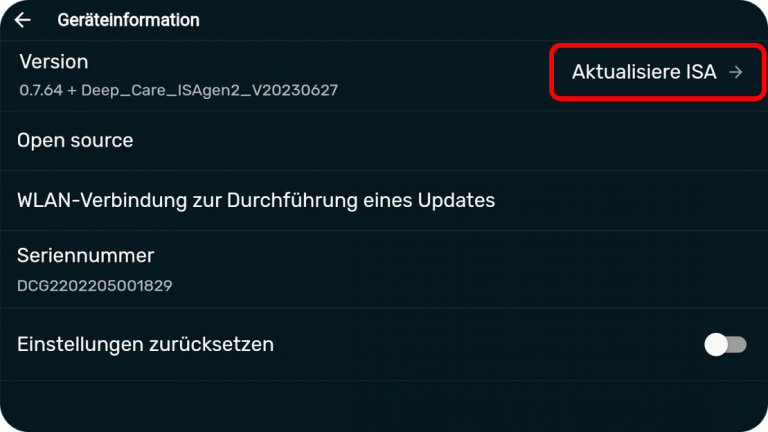
As soon as the connection is established, go back to the device information (top left) and tap on the arrow next to "Update ISA". (During the download, this sign "  ")
")
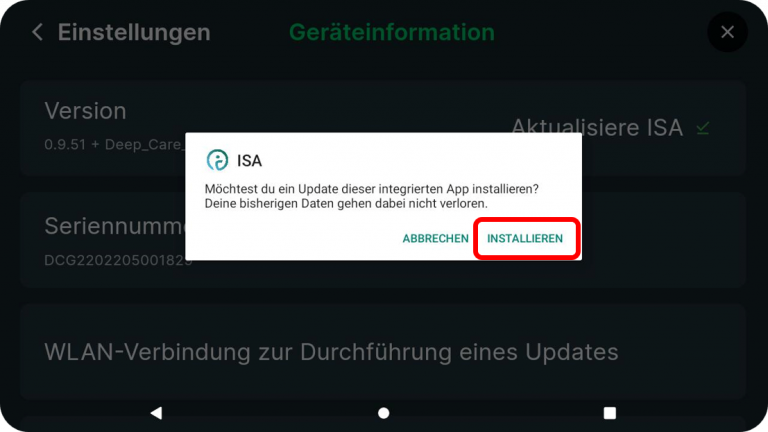
As soon as the software update has been downloaded, the window shown above will appear. Tap on "Install".
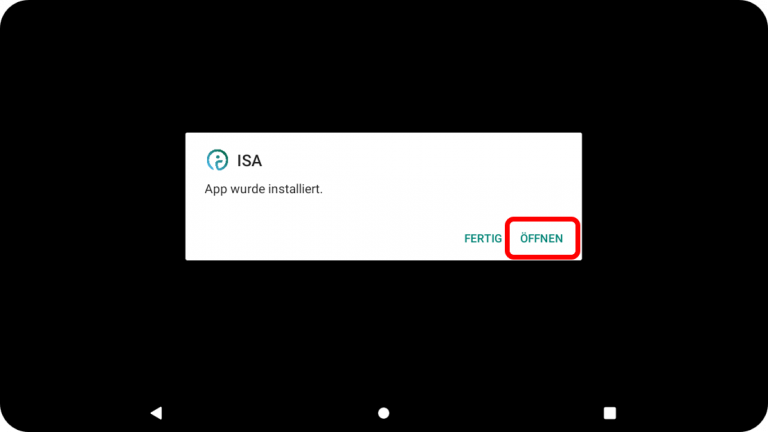
After installation, the message shown above will appear. Tap on "Open" to start the latest version. KICO will restart and the latest software will then run.
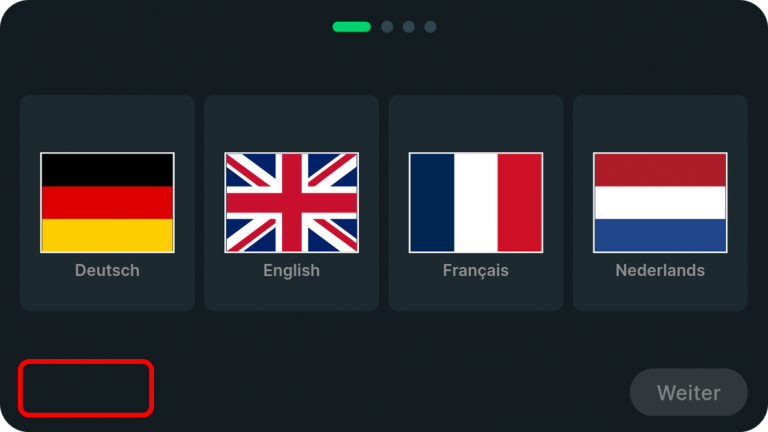
To display the onboarding again for the next user, please tap on the bottom left of the screen (the empty area)to skip it.
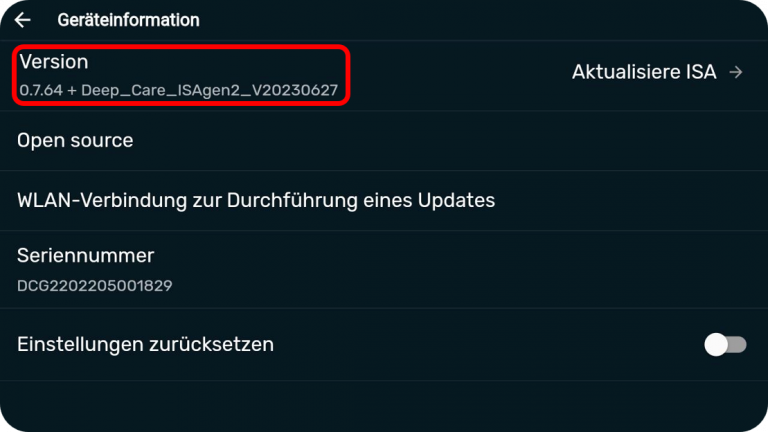
Open the menu " ", > "Settings" > "Device information" and tap "Version" 5 times. You will then be asked to enter a PIN code.
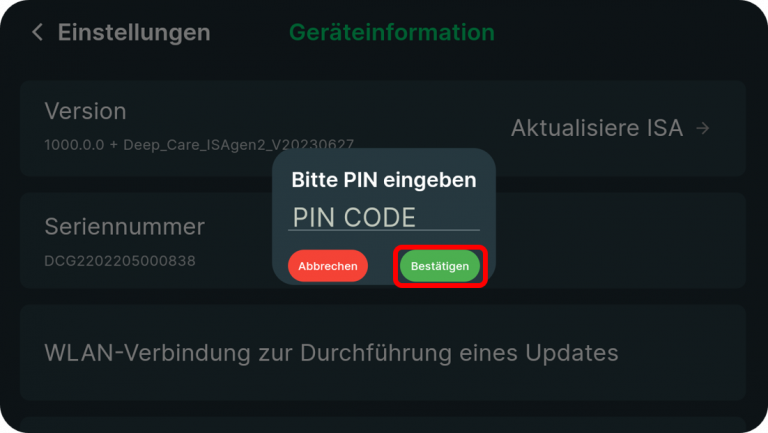
Enter "1886" and click on "Confirm".
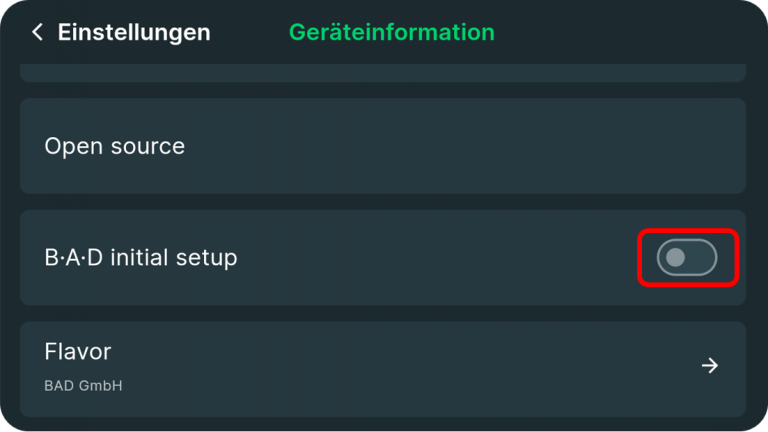
Scroll down a little and tap the button next to "B-A-D Initial Setup". KICO is restarted, after which the current software runs.
Open the menu (top right of the home screen) and go to "Settings" > "Device information" > "Wi-Fi connection to perform an update".
If "WLAN connection for performing an update" is not visible on your device, tap the serial number 5 times to activate the WLAN option.
Activate the WLAN (top right)select a network from the list and enter your WLAN password.
As soon as the connection is established, go back to the device information (top left) and tap on the arrow next to "Update ISA". (During the download, this sign " ")
As soon as the software update has been downloaded, the window shown above will appear. Tap on "Install".
After installation, the message shown above will appear. Tap on "Open" to start the latest version. KICO will restart and the latest software will then run.
To display the onboarding again for the next user, please tap on the bottom left of the screen (the empty area)to skip it.
Open the menu "", > "Settings" > "Device information" and tap "Version" 5 times. You will then be asked to enter a PIN code.
Enter "1886" and click on "Confirm".
Scroll down a little and tap the button next to "B-A-D Initial Setup". KICO is restarted, after which the current software runs.
How to optimally place your AI coach at your workstation
Set coaching intensity and exercise favourites
Activate focus mode, Set up workstation, Important functions & Standing desk calibration


Write us your request ...
You are currently viewing a placeholder content from HubSpot. To access the actual content, click the button below. Please note that doing so will share data with third-party providers.
More InformationYou are currently viewing a placeholder content from Facebook. To access the actual content, click the button below. Please note that doing so will share data with third-party providers.
More InformationYou are currently viewing a placeholder content from HubSpot Embedded Content. To access the actual content, click the button below. Please note that doing so will share data with third-party providers.
More InformationYou are currently viewing a placeholder content from HubSpot. To access the actual content, click the button below. Please note that doing so will share data with third-party providers.
More InformationYou are currently viewing a placeholder content from Hubspot Meetings. To access the actual content, click the button below. Please note that doing so will share data with third-party providers.
More Information